If you've come to check Mileage+ and your trips haven't tracked, there are some key areas to check to ensure full functionality of tracking has been enabled.
AutoTrack Toggle
Firstly, from the home/'trips' screen, check the AutoTrack toggle on the dashboard, is it set to the on position, as per the photo below:
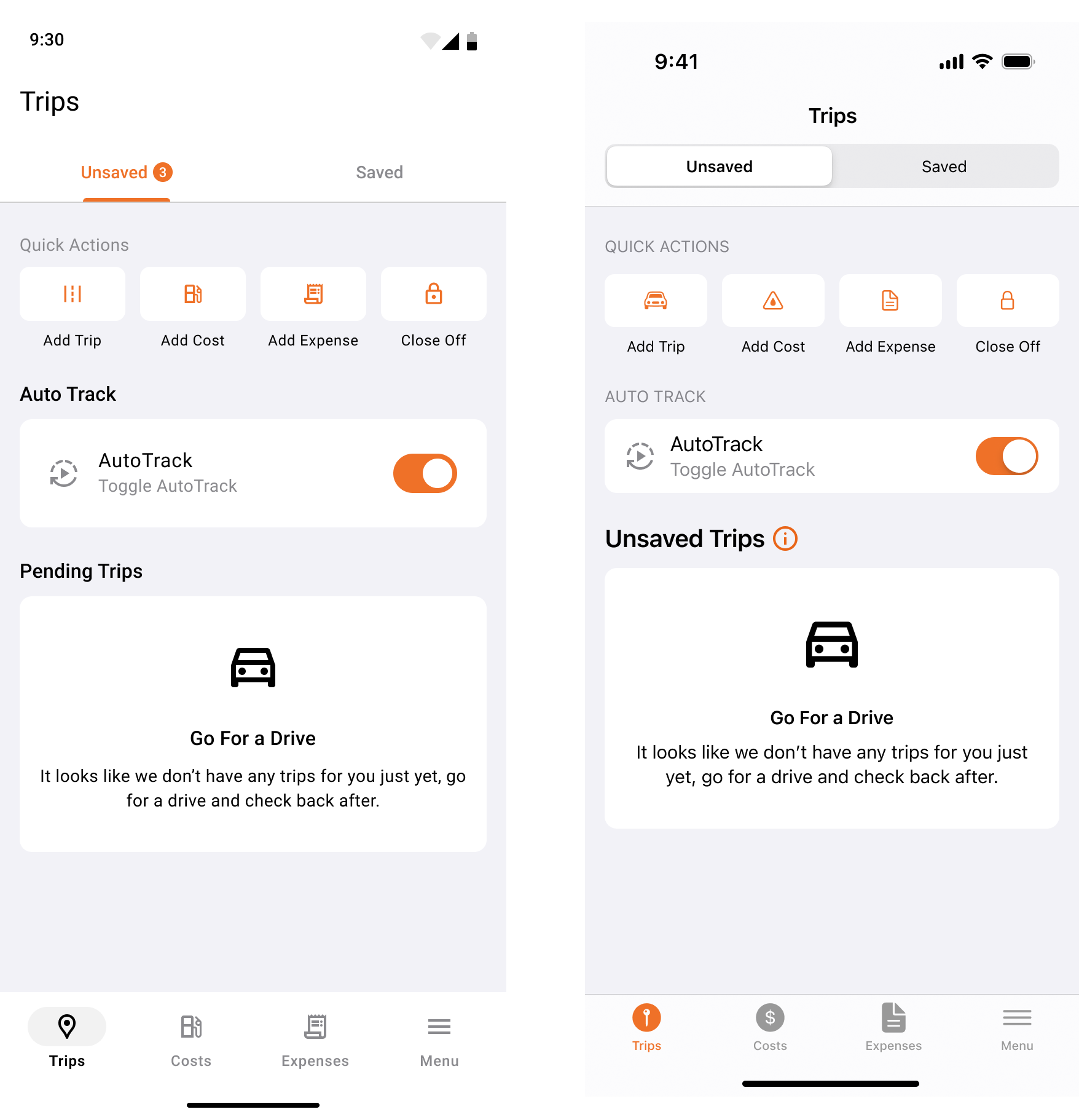
(Left - Android / Right - iOS)
Check Permissions
If you haven't granted all permissions, or a permission has been revoked since onboarding, you will see this reflected on the dashboard
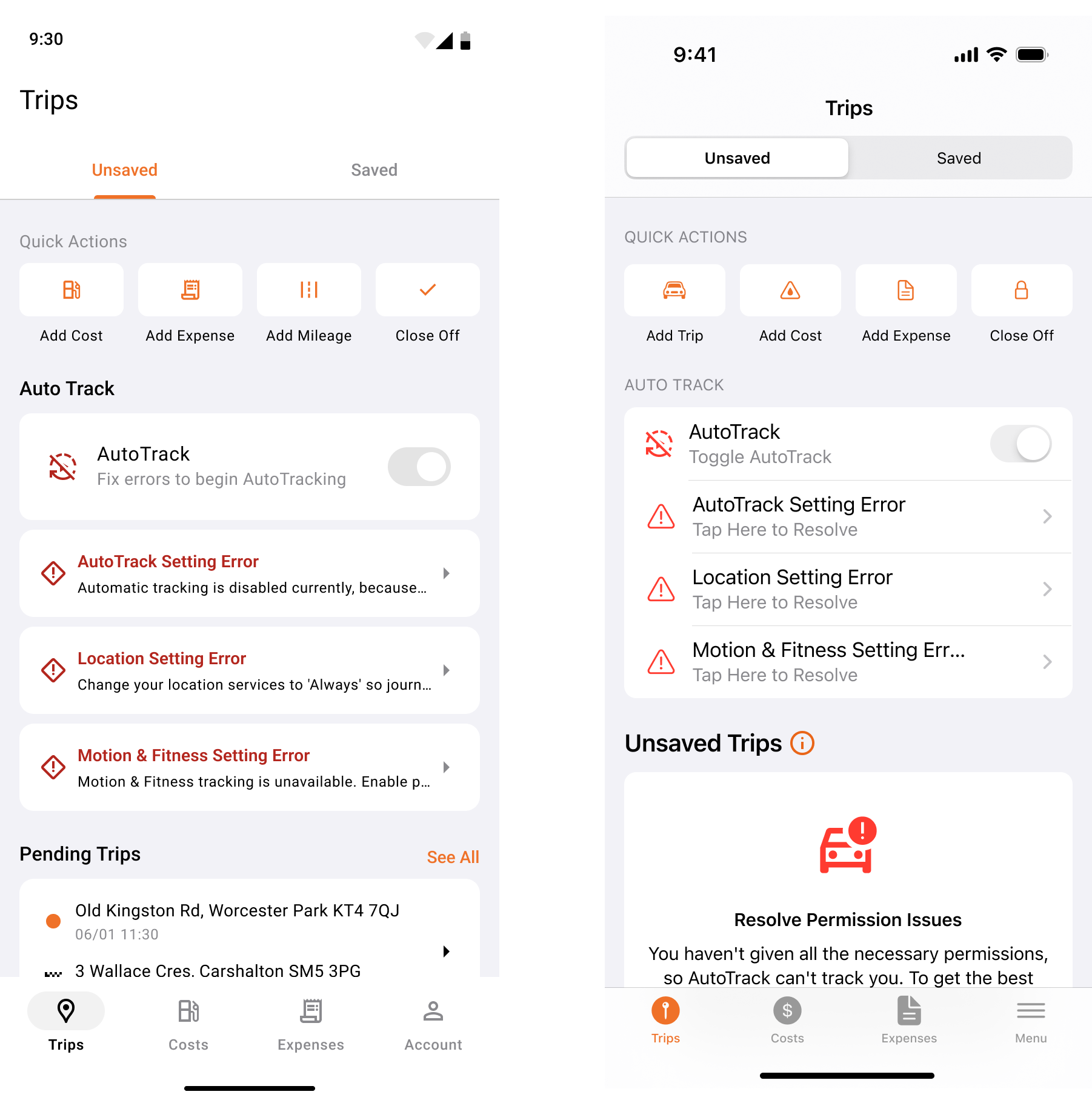
(Left - Android / Right - iOS)
Swipe Away
Due to how the operating system on different mobile phones work, if you swipe the app 'away', E.G, force close it or remove it from the background, tracking will not work to it's full potential, or at all.
When you swipe Mileage+ away, you'll receive a notification advising you have done so, keep an eye out for this notification. If you see it, open the app again and keep it open in the background.
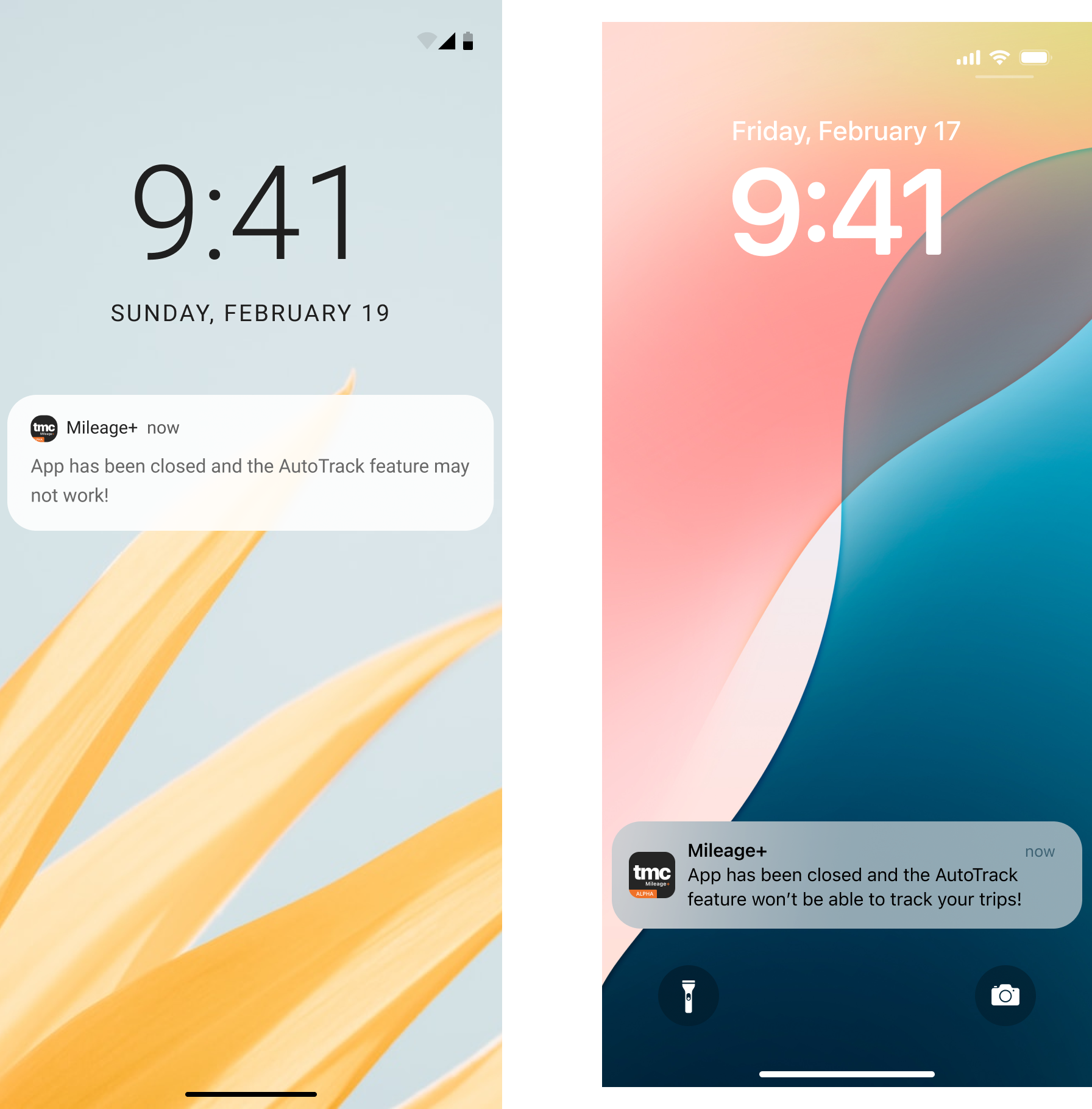
(Left - Android / Right - iOS)
AutoTrack Times
Was the trip recorded within AutoTrack times/days?
Double check your times are correct by going to 'Menu' then 'AutoTrack times' within the app, is the day and the time you completed the trip within covered by the currently set time?
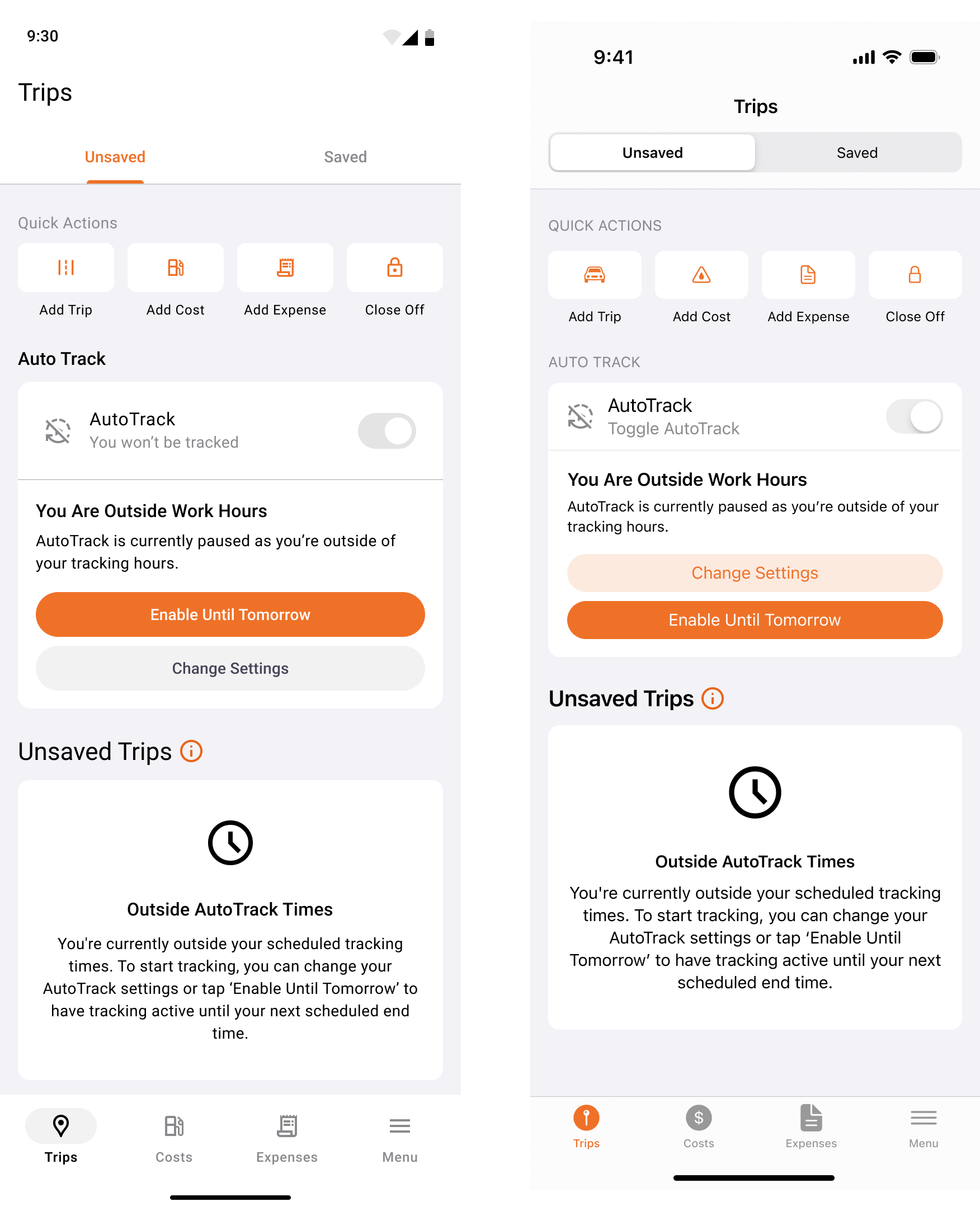
If you go outside of your tracking hours, when viewing the dashboard, you will see an 'outside tracking times' status.
From this state, you can either check the times, or enable tracking until the next AutoTrack window.