Samsung phones use battery saving features that go beyond standard Android. By default, these can stop Mileage+ from tracking in the background, meaning journeys are missed or recorded incompletely. The steps below will disable those restrictions.
The exact menu names and paths vary between Samsung models and Android versions, so if a setting isn't where we've described it, use the search function at the top of the Settings app to find it.
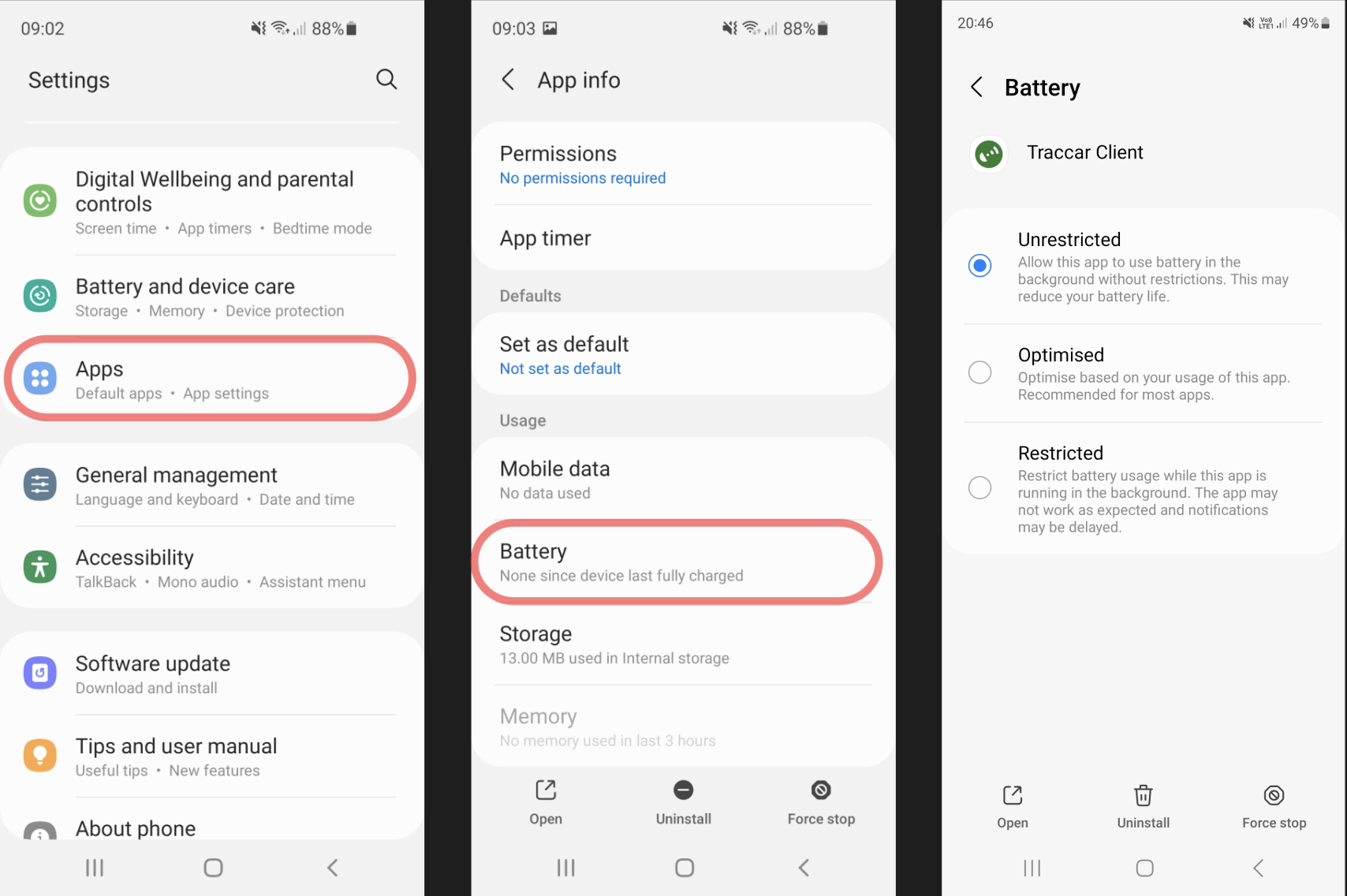
1. Turn off battery optimisation for Mileage+
Settings → Apps → Mileage+ → Battery → Unrestricted (or Don't optimise on older versions)
This tells your phone not to limit what Mileage+ can do in the background.
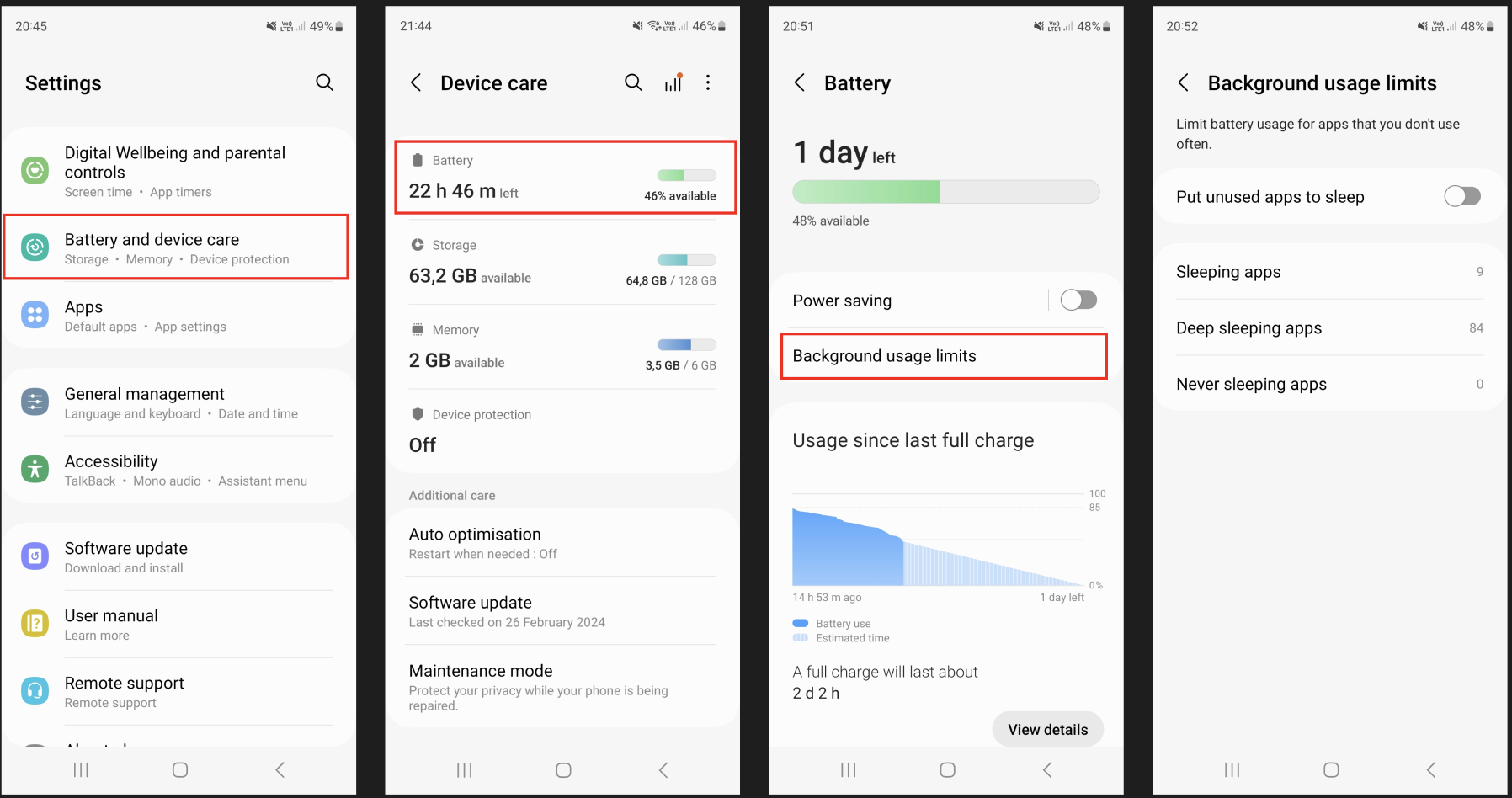
2. Turn off "Put unused apps to sleep"
Settings → Battery → Background usage limits → Put unused apps to sleep → Off
This is the most important setting. If left on, Samsung will restrict Mileage+ after around three days without opening it, so if you don't drive over a weekend, tracking may stop working on Monday.
3. Remove Mileage+ from the sleeping apps lists
In the same Background usage limits menu, check both Sleeping apps and Deep sleeping apps. If Mileage+ appears in either list, remove it.
4. Add Mileage+ to "Never sleeping apps"
Also in Background usage limits, open Never sleeping apps and add Mileage+. This protects it from being put to sleep in future.
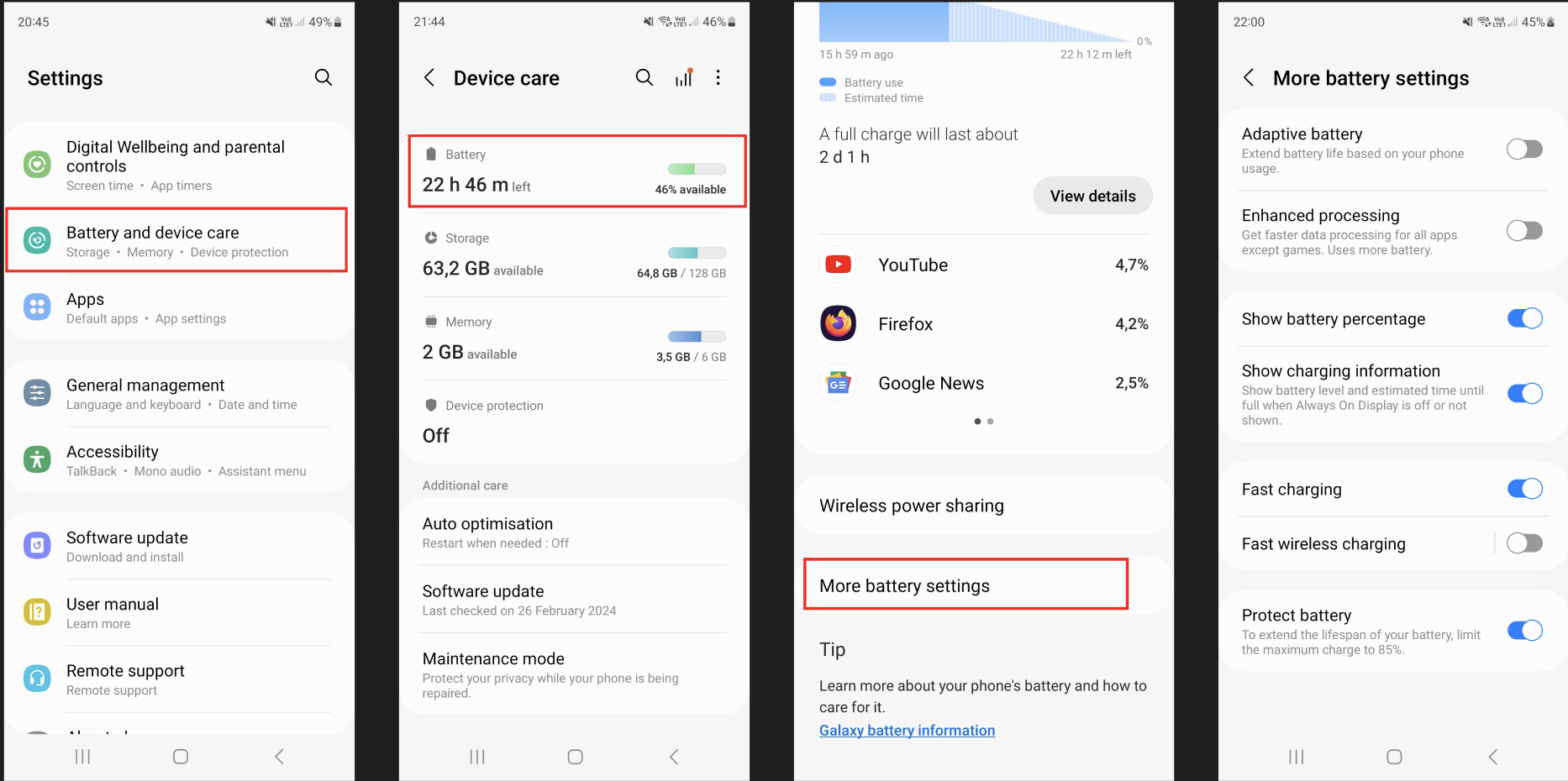
5. Turn off Adaptive battery
Settings → Battery → More battery settings → Adaptive battery → Off
Adaptive battery learns which apps you use most and restricts the rest. Because Mileage+ works in the background, your phone may wrongly decide it isn't needed.
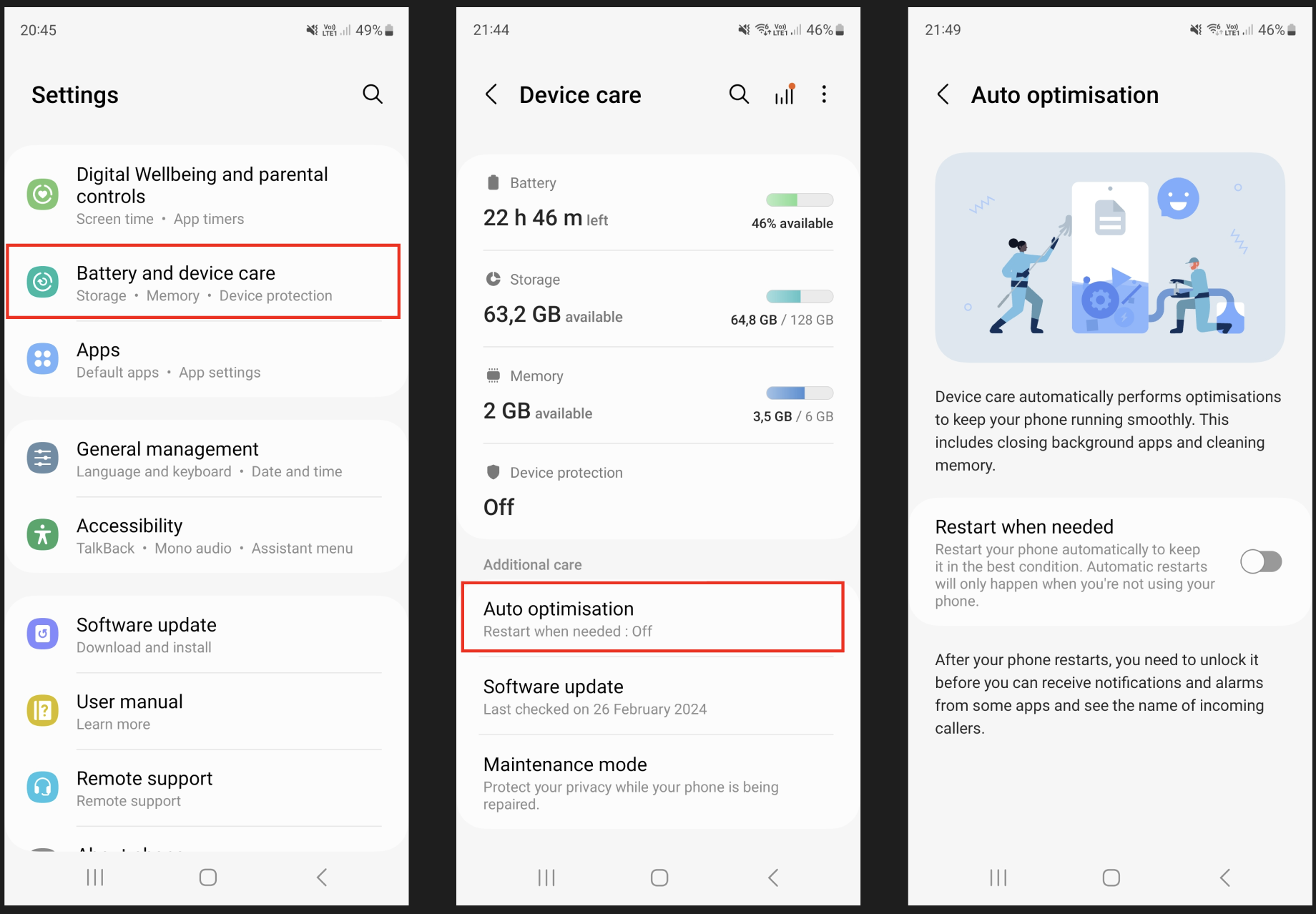
6. Turn off automatic optimisation
Settings → Battery and device care → (⁝) menu → Automation → Auto optimise daily → Off
Also turn off Adaptive power saving if it's available on your device.
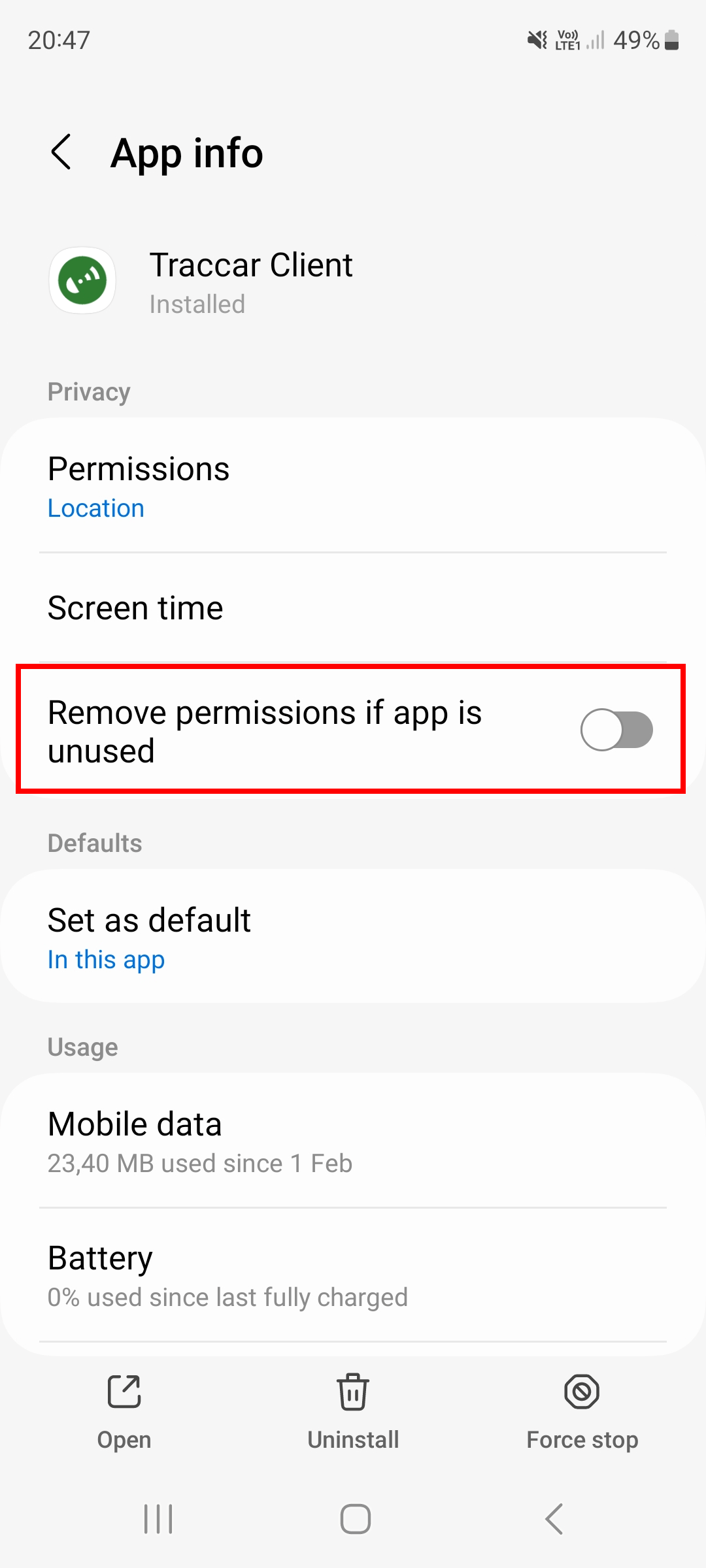
7. Turn off "Remove permissions if app is unused"
Settings → Apps → Mileage+ → (⁝) menu → Remove permissions if app is unused → Off
If this stays on, your phone can revoke the location permission Mileage+ needs to track your journeys.
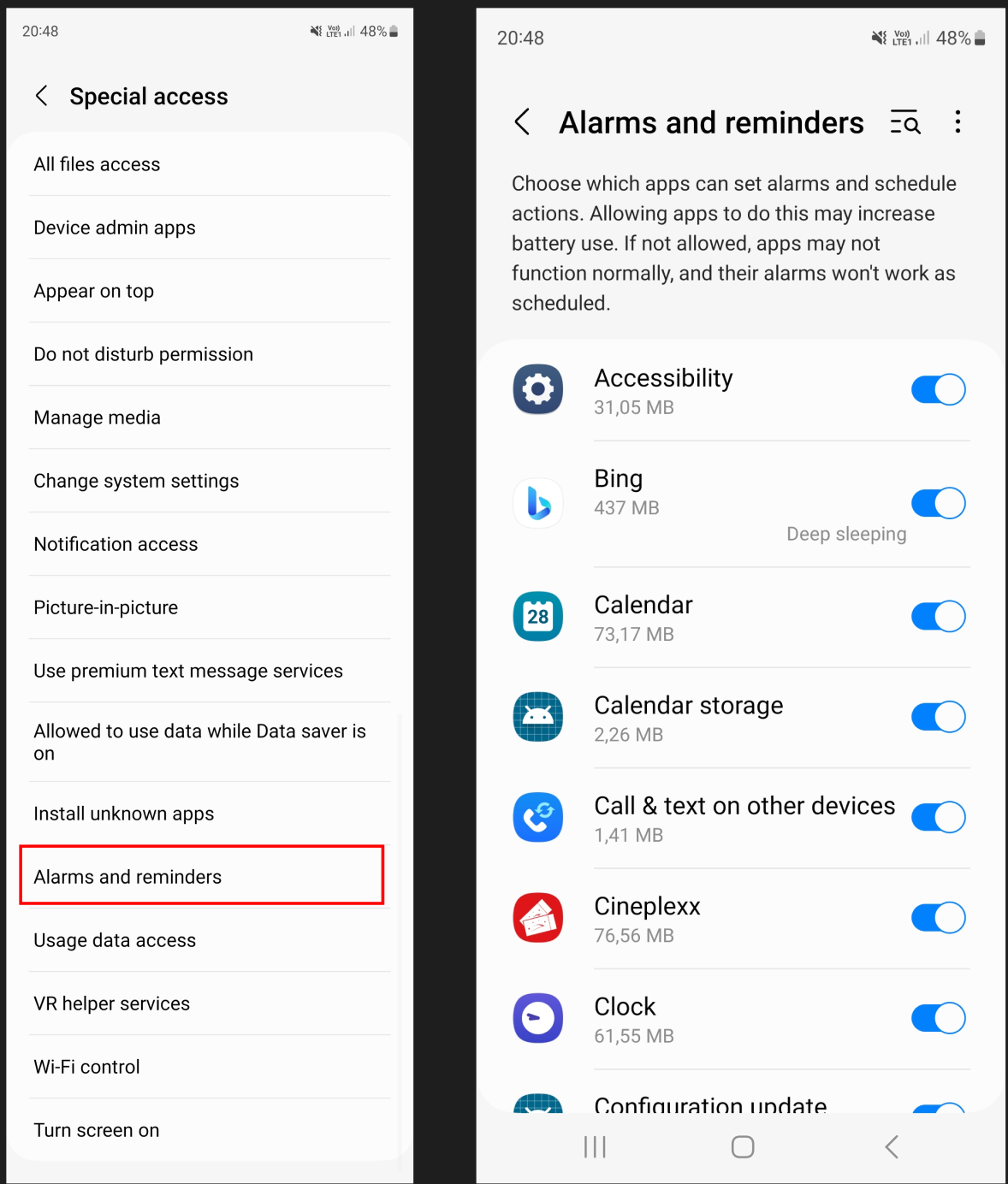
8. Allow Alarms & Reminders
Settings → Apps → Mileage+ → Alarms and reminders → Allow
This lets Mileage+ wake itself when it detects movement that may be a drive.
9. Lock Mileage+ in your recent apps
On newer Samsung devices (Android 14 / One UI 6 and above), you can "lock" an app so the system won't close it in the background:
- Open your recent apps (swipe up and hold, or tap the recents button).
- Find the Mileage+ card.
- Long-press the app's icon at the top of the card.
- Select Keep open (or Lock this app).
A small padlock will appear on the card to confirm. This option isn't available on every Samsung model or Android version, if you don't see it, you don't require this step.
Two important things to remember:
Don't swipe the app away. Due to how the operating system on different mobile phones works, if you swipe the app 'away', force closing it or removing it from the background, tracking will not work to its full potential, or at all. Leave Mileage+ running in the background.
Check these settings again after a software update. Samsung sometimes re-applies these restrictions after a system update, or if it decides an app is using too many resources. If tracking suddenly stops working, run back through this guide before contacting support.