If you do not have the ‘Add Vehicle’ button, we cannot update your vehicle. This must be done with approval from or by your company.
Adding a vehicle to your account
Sign into your account, going to ‘My Details’ > ‘Vehicle Details & Supporting Documents’

If your company allows, click ‘Add Vehicle’ at the top of the section.
Select whether the vehicle is a new default vehicle, an additional vehicle you have access to, or a temporary vehicle.
On the new screen, enter the registration of the vehicle, and click ‘Lookup Vehicle’.
If your registration is issued in the UK, you can use our API to retrieve the vehicle information, otherwise, you will need to enter the information manually or contact us via Live Chat to assist you.

Scroll down, depending on company requirements, you may need to add the odometer reading as of when you received the vehicle for business use, and the start date.
Click ‘Save’
If changing your default vehicle, you must enter the closing odometer reading for your previous vehicle, as well as the date you last used the vehicle.

Once done, you will have updated your vehicle.
Making a vehicle inactive
If you have more than one vehicle on your account, and need to make one of them inactive, go to 'My Details', then 'Vehicle Details & Supporting Documents'
Next to the vehicle you want to make inactive, click the 'Make Vehicle Inactive' button the the right-hand-side of the vehicle line.

You'll then be asked to enter the last used date and ending odometer reading for the vehicle, if required by your company.
You must always keep a record of your odometer readings, to ensure that the information on your account is correct. If you have forgotten to keep a hold of this and had a company or a hire car, you can contact your company or the rental company to retrieve this.
Editing your vehicle details
If the vehicle you want to make inactive isn't your primary vehicle, you will need to change the type of vehicle marked as an additional vehicle.
Next to the additional vehicle, click 'Edit':

Any vehicle details your company allows you to edit, will be in a white field, anything greyed out is controlled by your company, and you must check with them before you edit the fields.
To update which vehicle is the default vehicle on your account, click the 'Make this Vehicle the Default Vehicle' checkbox, and the click 'Save'.

Once done, the default vehicle on your account will update.
Reactivating a vehicle
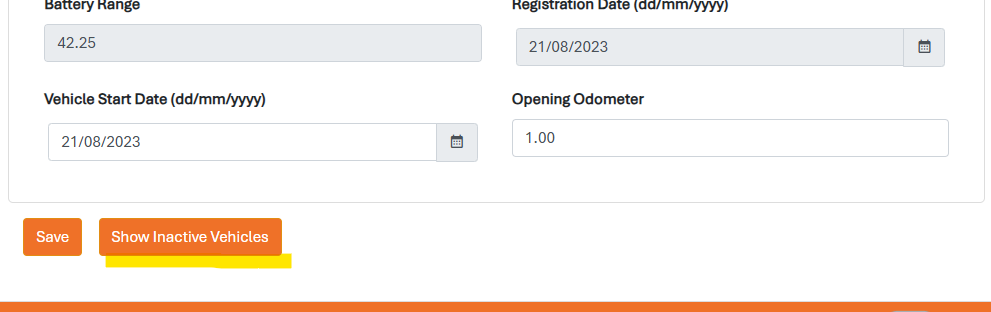
To reactivate an old vehicle, go to My Details, Vehicle Details and Supporting Documents and press Show InactiveVehicles.
You will then see a reactivate vehicle option next to the inactive vehicle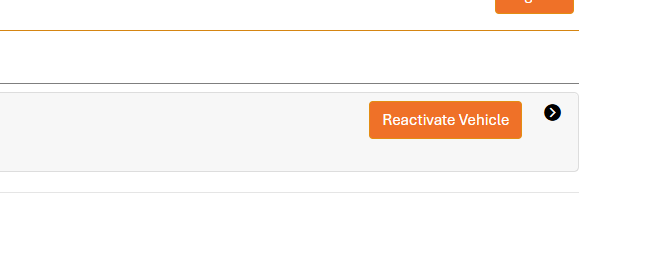
Press this button, you will then be asked for the date you started using the vehicle again and the opening odometer reading.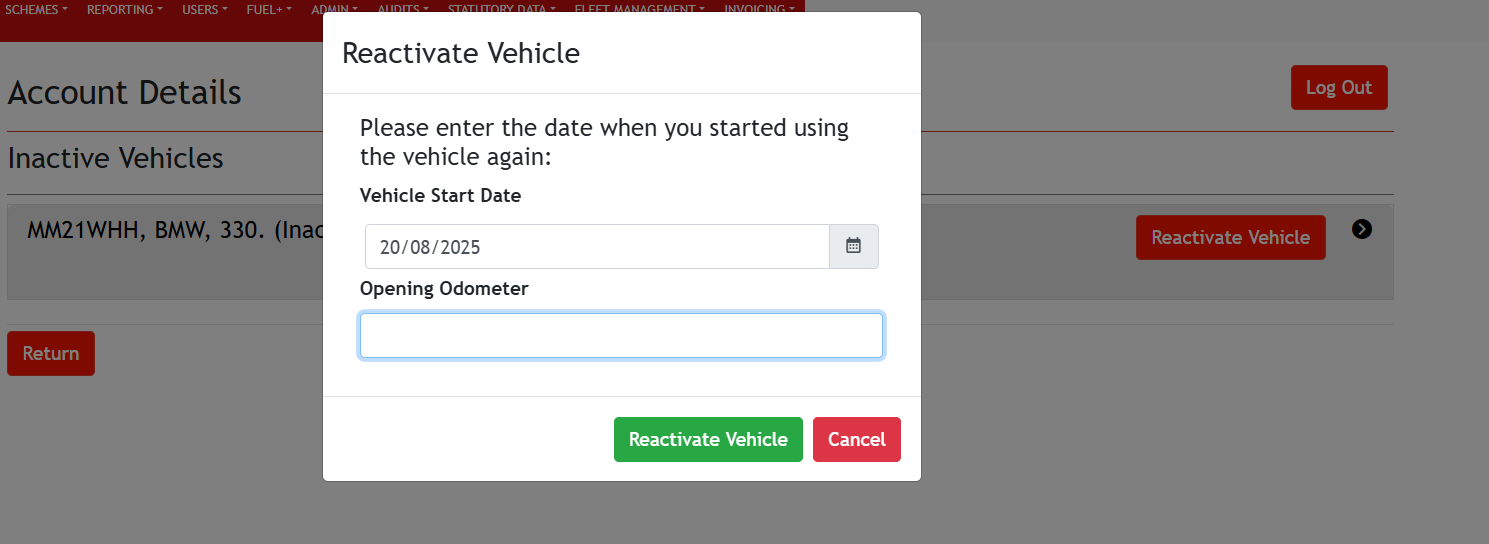
Your vehicle will now be reactivated as an additional Vehicle.
If you do not have the option to reactivate a Vehicle, you will need to contact TMC to have this reactivated. Please make sure you have a record of the Odometer readings.
Changes in your Odometer reading
If your odometer reading has changed since you have last used your vehicle , you will need to inform us of the difference in miles so that we can take the appropriate steps.
As an example, you may have taken your car to the garage and then the garage has completed a test drive in the vehicle. You will then need to supply us with the accumulated mileage amount ( The difference from the odometer when you dropped it off, to the odometer when you picked it back up ) so that we can ask your company if they approve of these miles.
This process is also the same if your vehicle has been loaned out to another employee. You will need to make sure that you keep a record of the odometers when this is handed over and then received back to work out the accumulated mileage.
TMC cannot remove any accumilated mileage from being logged as personal, unless this has been approved from your company as per the above process.
My odometer is Incorrect, how do I change this?
To amend your odometer, you will need to go into your vehicle details. To do this please press My details and then select the Vehicle details and supporting documents tab. Once here, you can hover over the starting odometer reading box and type over this to correct this. If this is Grey, this means that you will need to speak with us to amend this.
If you need to update an odometer reading that was entered incorrectly for example December's odometer has a typo, please reach out to us so that we can unlock the period. You will then be able to change the number and close off again with the correct reading.
I do not have the opening odometer, what do I do?
If you do not have the odometer readings for your vehicle, you will need to speak with the provider that you had the vehicle from as they will have a record of this. Alternatively please check any recent documents such as MOT/Service history or paperwork handed to you for the vehicle, as this will also have a record of the odometer reading at the time.